How to export your Stripe transactions with their country of origin
#stripe#tutorial#opensource
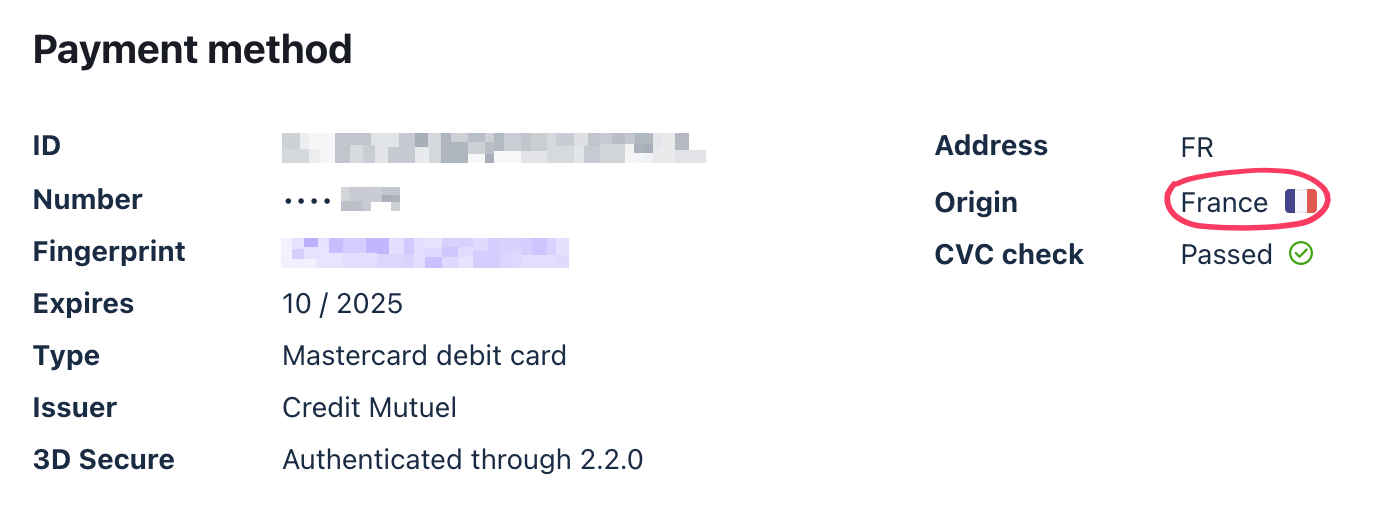
Recently, I got curious and wanted to make a visual representation of the disparity between Bonjourr's user base and the countries that donate to us the most on Ko-fi. As we use Stripe, I thought it would be pretty simple to export the data and create a graph out of it, especially since Stripe makes the country of origin very clear on the transaction pages: Stripe makes the origin of the payment very clear on the transaction page.
Unfortunately, it wasn't so simple as the country of origin is not included when you export transactions from Stripe's dashboard. It seems at least slightly intentional on Stripe's part as they mention the country nowhere else, and even sorting transactions by country is impossible.
I thought about it for a bit before realising that the data is actually accessible through Stripe's API, which led me to making a small script to export it.
🤓 How to actually do it
Step 1: install Node
If you don't already have it, download and install Node as a package. This will allow you to run the script.
Step 2: create a Stripe API key
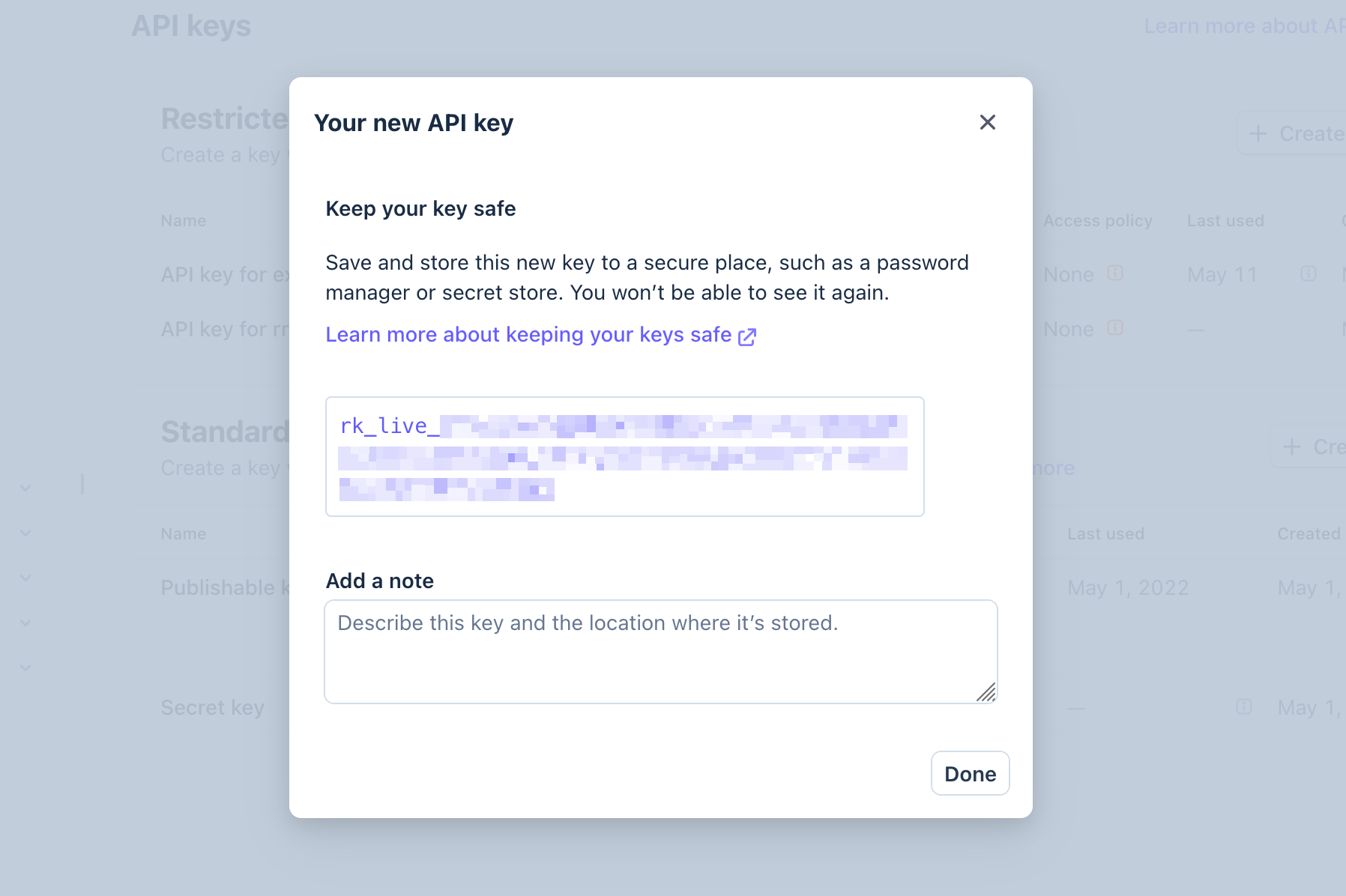
Log in to your Stripe account, then head to Settings → Developers → Manage API keys. Click "Create restricted key" and choose "Providing this key to a third-party application". Enter a name and a URL (anything will do), click the create button and follow the verification steps. Be sure to copy your key somewhere safe, you will only see it once.Once verified, your key should appear in a popup window where you'll be able to copy it. Do not share it, as it can be used to access and modify most of the data from your Stripe account.
Step 3: Download the script
On the GitHub repo, click the green Code button and download the script as a zip. Unzip it.
Step 4: Open a terminal & move to your downloaded folder
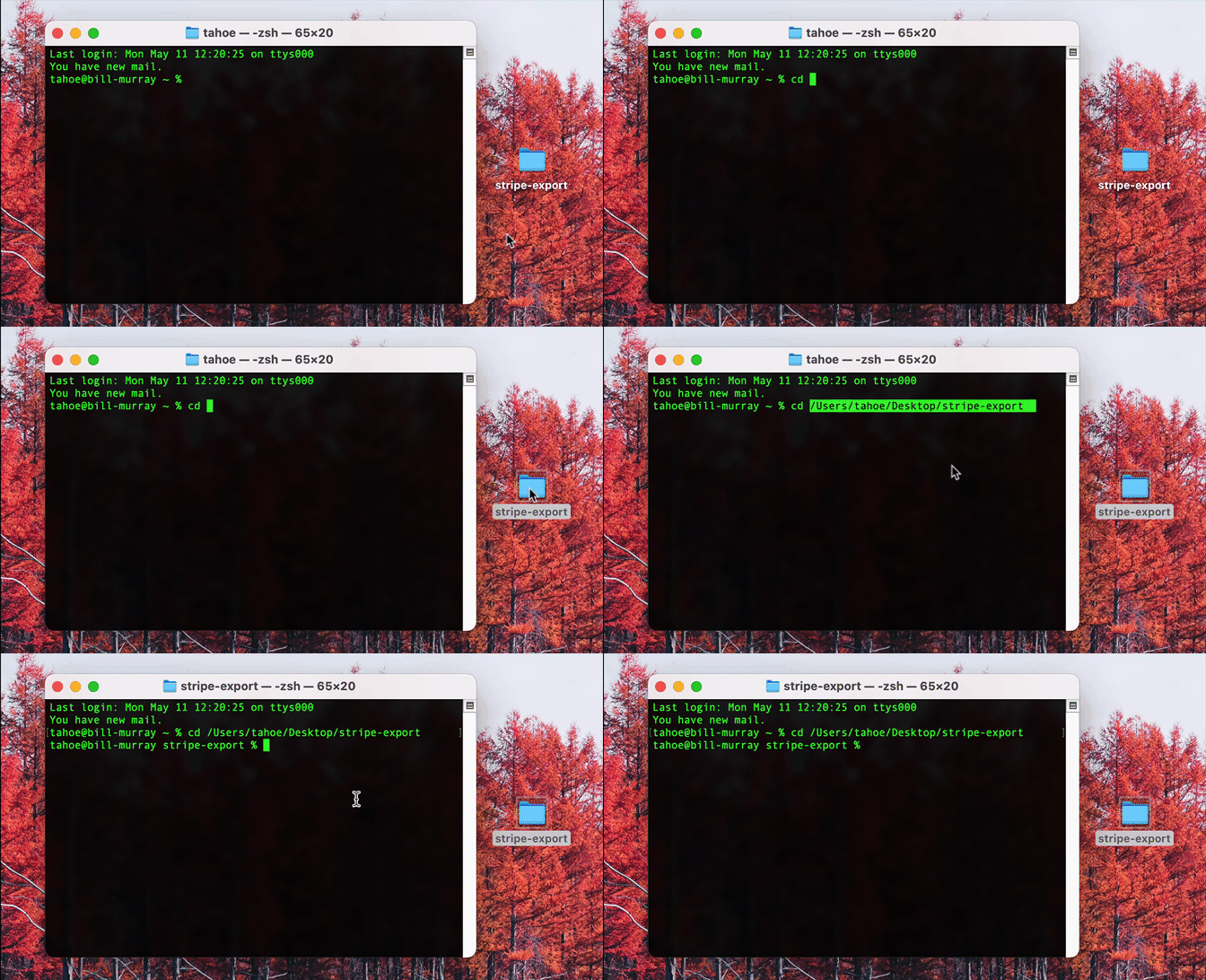
Open a terminal or a PowerShell and type cd /path/to/your/folder to move to the unzipped folder. You can do it easily by typing cd , and then drag and drop your folder to the terminal window: Easily get your folder's path through drag and drop.Then run this command in the terminal: npm i (this will basically initialise the script by installing some tools it needs).
Step 5: Run the script
In your terminal window, type this command with your own API key and hit enter:
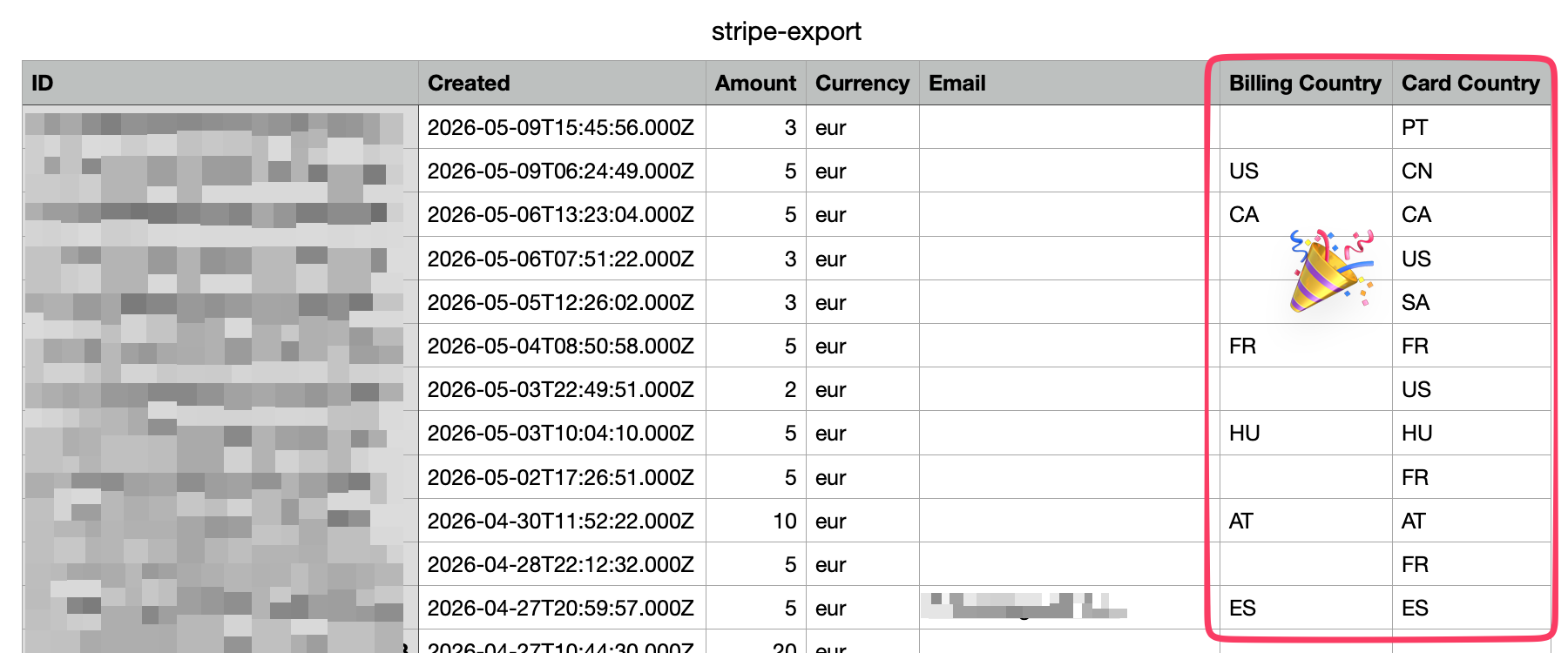
If you have lots of transactions, it will load for a while! But once it eventually says "Export complete", you'll find your newly created CSV file next to the script. There's our countries!